PNG to JPG
Convert transparent PNGs with your choice of background.
Review file order below. Results can be downloaded individually or together as a ZIP.
Loading converter…
No uploads. Maximum results: 100 MB total. Keep this tab open. Cancel stops PDF and ZIP workers; an image already encoding may finish before its result is discarded.
Need another format or found a problem? Send feedback ↗
How to use PNG to JPG
- Add your PNG file. Choose a file from your device and review the workspace.
- Choose your options. Review the settings and select Convert.
- Save your result. Use the download links to save your results. Image exports can also be downloaded together as a ZIP.
Know your output.
Still images only; animated images are rejected. Images are re-encoded, so metadata and color profiles may change. JPEG removes transparency and uses your selected background. Maximum 20 MB and 24 megapixels per image, 12000 pixels per side, and 100 MB total input. Width and height apply before rotation. Results may be larger than the original; quality is not a target file size.
Conversion happens locally. Refreshing or closing this tab clears the workspace; downloaded files remain on your device.
PNG to JPG: conversion behavior
Convert a still PNG to JPEG with selectable background color and quality. Transparent pixels are flattened because JPEG cannot store transparency.
Use it when a destination requires JPEG. Keep PNG or choose WebP when transparency is needed.
- White is the default background; choose another color to match the destination.
- JPEG is lossy. Review fine text and sharp edges at full size.
- Dimensions stay the same by default; use width, height and rotation controls to change them.
- Quality affects encoding, not dimensions, and does not guarantee a smaller file.
Transparency meets a white background.
This 480 × 300 sample has transparent areas and soft edges. The JPEG was generated with a white background and 90% quality in Chromium. The checkerboard is a preview background, not part of the source image.
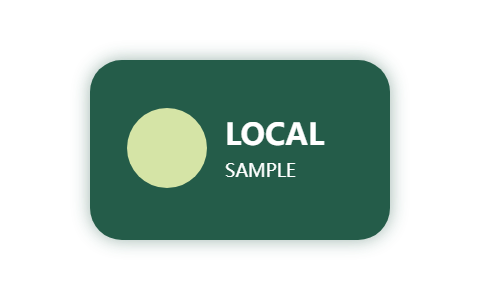
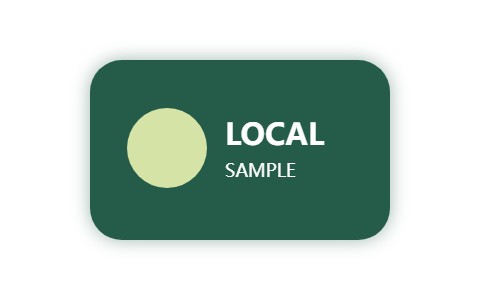
Repeat it above: open the sample, select white (#ffffff) and High · 90%, then convert. Pixel dimensions should remain 480 × 300. Your file size may differ across browsers. See the testing notes.
Questions about PNG to JPG
Why did transparency turn white?
JPEG cannot store transparent pixels. LocalShift fills them with your chosen color, white by default.
Can a JPG keep transparency?
No. Use PNG or WebP for a transparent result.
Understand the next step
Why PNG transparency changes when you convert to JPGChoose between JPEG, PNG and WebP for your next exportContent reviewed · Conversion behavior & testing